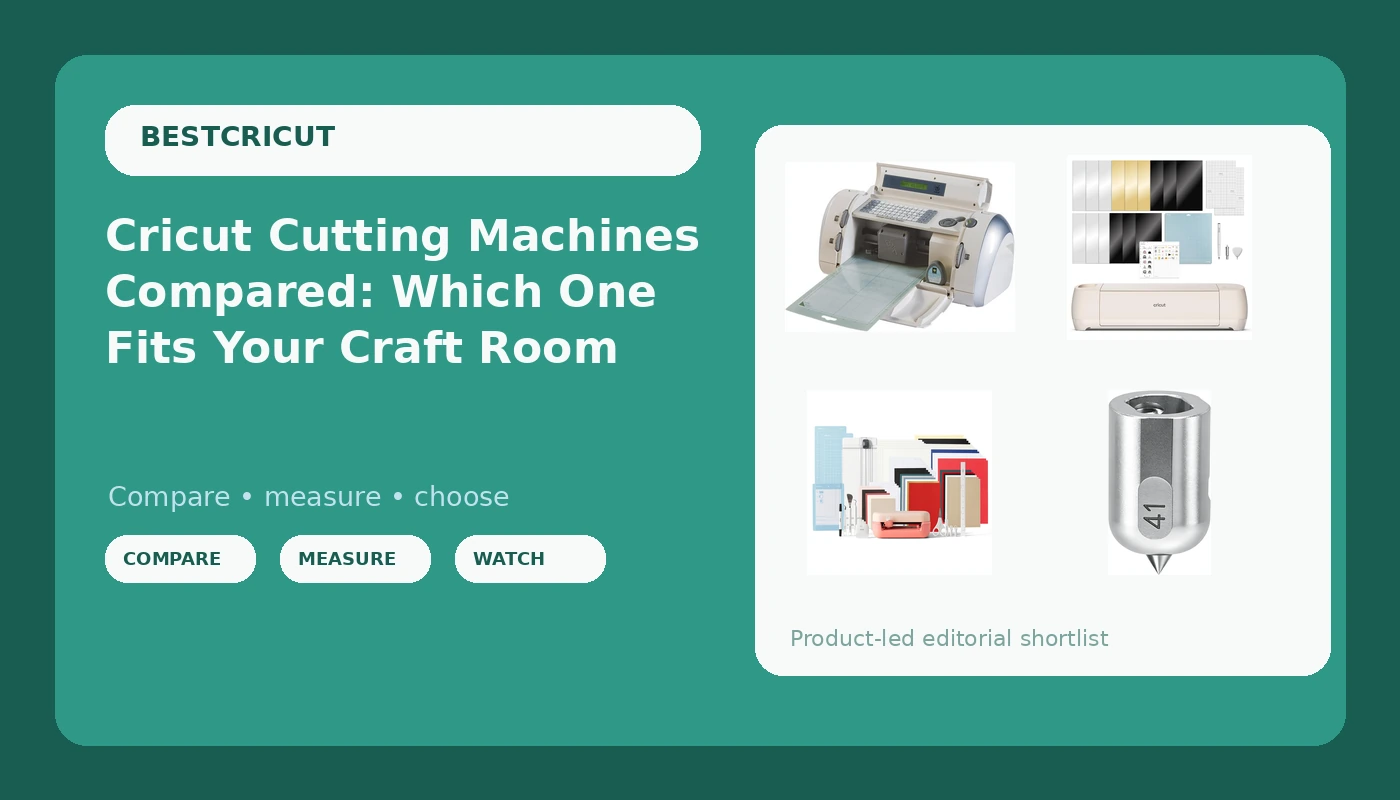
Buying a Cricut is less about picking the fanciest machine and more about matching the hardware to the volume of cutting you actually do. Cricut cutting machines range from a compact unit that lives on a shelf to a full-size machine that swallows a 12-inch sheet of vinyl, and the accessories around them matter almost as much as the box you open first. The problem is that the lineup is a price ladder, and the marketing pushes you up it whether or not your projects need the extra tools.
This comparison covers four listings that fill the realistic roles: a full-size machine, a compact bundle, a legacy budget unit, and one accessory that only makes sense if you already own the right machine. It also covers the recurring costs the box price hides, because the machine is a one-time purchase and the software is the part that keeps charging you.
Related: Cricut Blades and Mats: What Actually Wears Out First →
Quick answer
There is no single machine that wins for everyone, and none of these listings should be called the fastest or the best. The practical split is by project size and material format. If you cut stickers, decals, and HTV for shirts at the standard 12-inch width, a full-size machine in the Explore family is the sensible starting point, and the Seashell bundle adds digital content on top of the hardware. If your projects are small, narrow, and frequent, the compact Joy 2 bundle takes up far less space. If you want the lowest entry cost and you are comfortable with an older generation of hardware, the legacy Personal cutter is the budget path, with the caveat that you should verify support details on the listing. The engraving tip is not a machine at all. It is an accessory that only makes sense after you own a compatible Maker.
Four useful options
| Model | Best fit | What stands out |
|---|---|---|
| Cricut Explore 4 - Smart Cutting Machine (Seashell) Digital Content Bundle | Full-size vinyl, paper, and HTV projects | Full-width cutting plus bundled digital content |
| Cricut Joy™ 2 + Deluxe Bundle, Coral | Small, narrow, frequent cuts in tight spaces | Compact footprint with a bundle of accessories |
| Cricut 29-0001 Personal Electronic Cutting Machine | Lowest-cost entry into cutting | Legacy standalone cutter; verify software and material support on the listing |
| UCEC Engraving Tip (41) Compatible with Cricut Maker 4/Maker 3/Maker | Adding engraving to a Maker setup | Third-party tip listed for Maker 4, Maker 3, and Maker |
The full-size workhorse: Cricut Explore 4 - Smart Cutting Machine (Seashell) Digital Content Bundle
The Explore family is the tier I would point most people to, and this listing is a clean version of it. The reason is format. A full-size machine accepts the standard 12-inch width that most vinyl, HTV, and cardstock is sold in, so you are not cutting material down or hunting for narrower stock. The digital content bundle matters more than it sounds, because a new machine with no files means an empty canvas and a subscription prompt. Having images included gives you something to cut on day one without paying for access immediately.
The trade-offs are size and software. The Explore does not accept the adaptive tool system the Maker line uses, so engraving tips and several specialty tools are off the table. Everything runs through Design Space, which means a cloud connection and an account, and that is the piece of this purchase with an ongoing cost attached.
The compact option: Cricut Joy™ 2 + Deluxe Bundle, Coral
The Joy line exists for a different problem: small projects in small spaces. If your work is labels, cards, small decals, and narrow cuts rather than full-width shirt designs, a compact machine does the job with less footprint and less wasted material. The Deluxe Bundle in Coral adds accessories on top of the machine, which is genuinely useful, because accessories are where a cheap machine quietly gets expensive.
The constraint to understand before buying is width. A compact cutter works with narrower material, so any project that needs a full 12-inch sheet is out of scope, and you will be buying material in smaller formats. If you already own a full-size machine, treat this as a second machine for quick jobs, not a replacement. If it is your only machine, plan your projects around its width from the start.
The legacy budget pick: Cricut 29-0001 Personal Electronic Cutting Machine
This is the budget entry point, and it is worth being clear about what it is. The Personal Electronic Cutting Machine comes from an older generation of hardware, and the listing is the place to confirm what it includes, what it cuts, and how projects get loaded onto it. That detail matters because the workflow on an older machine can differ substantially from what a current Design Space tutorial assumes you have in front of you.
Where it can make sense is as a low-cost way to find out whether you enjoy cutting at all, or as a backup unit for simple shapes. Where it does not make sense is as a first machine for someone who wants to follow modern tutorials, cut HTV apparel, or use current software features. Before buying, confirm the software path and the material list on the listing itself.
The accessory add-on: UCEC Engraving Tip (41) Compatible with Cricut Maker 4/Maker 3/Maker
This is the one listing here that is not a machine, and it has the narrowest audience of the four. An engraving tip is a tool that goes into the adaptive tool system on Maker-class machines, and this listing names Maker 4, Maker 3, and Maker compatibility. It will do nothing for an Explore or a Joy owner, so if you are shopping for your first cutter, skip it.
The reason to consider a third-party tip rather than the branded one is straightforward economics. Tools are consumables and they wear out, and branded replacements are priced for convenience. The trade-off is that compatibility is a claim made by the tip's manufacturer rather than by the machine brand, so verify the fit for your exact machine before ordering. Also budget for the time: engraving is a slower process than cutting vinyl, so it suits a project where the finish matters more than the speed.
Prices and availability may change. Product images, names, and retailer links are matched to verified listings. No current price, rating, stock status, or measured result is stated here without current evidence.
What the machine tiers actually change
The tier names sound like quality levels. They are really format and tool compatibility levels, and that is the part worth understanding before you spend anything.
Width and material format. A full-size machine accepts standard 12-inch material, which is how most vinyl, HTV, cardstock, and transfer tape is sold. A compact machine works with narrower material, which is cheaper per roll but limits how large a single cut can be. If you plan to make shirt graphics or large decals, width decides the machine for you before any other feature does.
Tool system. The Maker line uses an adaptive tool system with swappable blades and tips, which is why an engraving tip exists for it and not for the Explore or the Joy. The Explore line uses the standard blade housing plus a limited set of tools. If a specific specialty tool is the whole reason you want a machine, buy the machine that accepts it, not the machine that is on sale.
Software. Every current machine runs through Design Space. Older-generation machines may use a different workflow. This is the single biggest difference between a new machine and a legacy one, and it affects how easily you can follow tutorials, share files, or reuse a project six months later.
Blades and mats. These are consumables on every machine in the lineup. A dull blade looks like a machine fault, and a mat that has lost its tack looks like a cutting error. Neither is a reason to upgrade hardware.
The subscription math behind the box price
The machine is a one-time cost. The software is where the ongoing money lives, and the difference shows up in what you can cut without paying again.
Design Space has a free tier and a paid subscription tier. The free tier gives you access to the machine, your own uploaded files, and a rotating set of free content. The paid tier unlocks a much larger library of images, fonts, and ready-made projects, and it removes some of the friction you hit when you are browsing for something to cut. The subscription is billed monthly or annually, and the annual option is structured to look cheaper per month, which is the standard playbook.
The honest way to think about it is cost per project, not cost per month. If you cut a handful of sticker sheets a year, the free tier plus your own designs is enough, and the subscription is a tax on enthusiasm. If you are selling finished goods and the library saves you hours of design time each week, the paid tier can pay for itself. The trap is paying for the subscription because it appeared in a pop-up mid-project, then never using the library again.
There is a second piece of recurring cost people forget: materials. Vinyl, HTV, transfer tape, mats, and blades all get consumed, and the branded versions are priced for convenience rather than value. Whatever you spend on the machine, plan for a steady trickle of consumables after it.
- Decide the widest single cut you need, because that decides full-size versus compact.
- Decide whether you need a specialty tool like engraving, because that decides Explore versus Maker.
- Estimate how many finished projects you make per month, because that decides whether the free software tier is enough.
- Add up the consumables you will use in a year, including mats and blades.
- Only then compare machines, and buy the one that clears those four bars without extra features.
Practical guidance before you order
- Confirm the material widths the machine accepts, then check what width your existing supplies are.
- Check whether the listing is the machine alone or a bundle, because bundles change what you still need to buy.
- Verify software support for older machines on the listing, not on a tutorial from a different model.
- Treat the engraving tip as a Maker-only purchase and confirm your machine is named in the compatibility list.
- Budget for mats and blades as consumables from day one rather than as an upgrade later.
Which option should you choose?
Choose the Cricut Explore 4 - Smart Cutting Machine (Seashell) Digital Content Bundle when you want full-width cutting for vinyl, paper, and HTV and you would rather start with digital content already included. Choose the Cricut Joy™ 2 + Deluxe Bundle, Coral when your projects are small and narrow and space is tight, or when you want a second machine for quick jobs. Choose the Cricut 29-0001 Personal Electronic Cutting Machine when the lowest possible entry cost matters more than matching current tutorials, and you have confirmed the software path on the listing. Choose the UCEC Engraving Tip (41) Compatible with Cricut Maker 4/Maker 3/Maker only if you already own a Maker-class machine and want an engraving option.
The caveat is that compatibility and support details for older and third-party hardware are stated by the seller, not by the machine brand. Verify those details on the listing before you buy, especially for legacy machines and non-branded tools.
The bottom line
The machine you buy should be decided by width and tool compatibility, not by tier names. A full-size Explore-class machine covers the most common projects, a compact machine covers small-format work with far less footprint, and a legacy cutter is a budget path with real workflow caveats. The engraving tip is an add-on for Maker owners and nothing else. Whichever you pick, remember that the box is the cheap part: software access and consumables are the recurring costs that decide whether this hobby stays affordable.