Related: Best Cricut Machine For Small Business
The box tells you it'll take ten minutes. That's a lie. Unboxing a new Cricut is easy. Getting it dialed in so it actually cuts clean through 120-pound cardstock without tearing or skipping takes longer, and most beginners quit before they get there.
I've unboxed three Cricuts in six years, set up two of them myself, and helped a dozen students through their first machines.
Here's what actually matters when you're staring at that foam packing and wondering where to start.
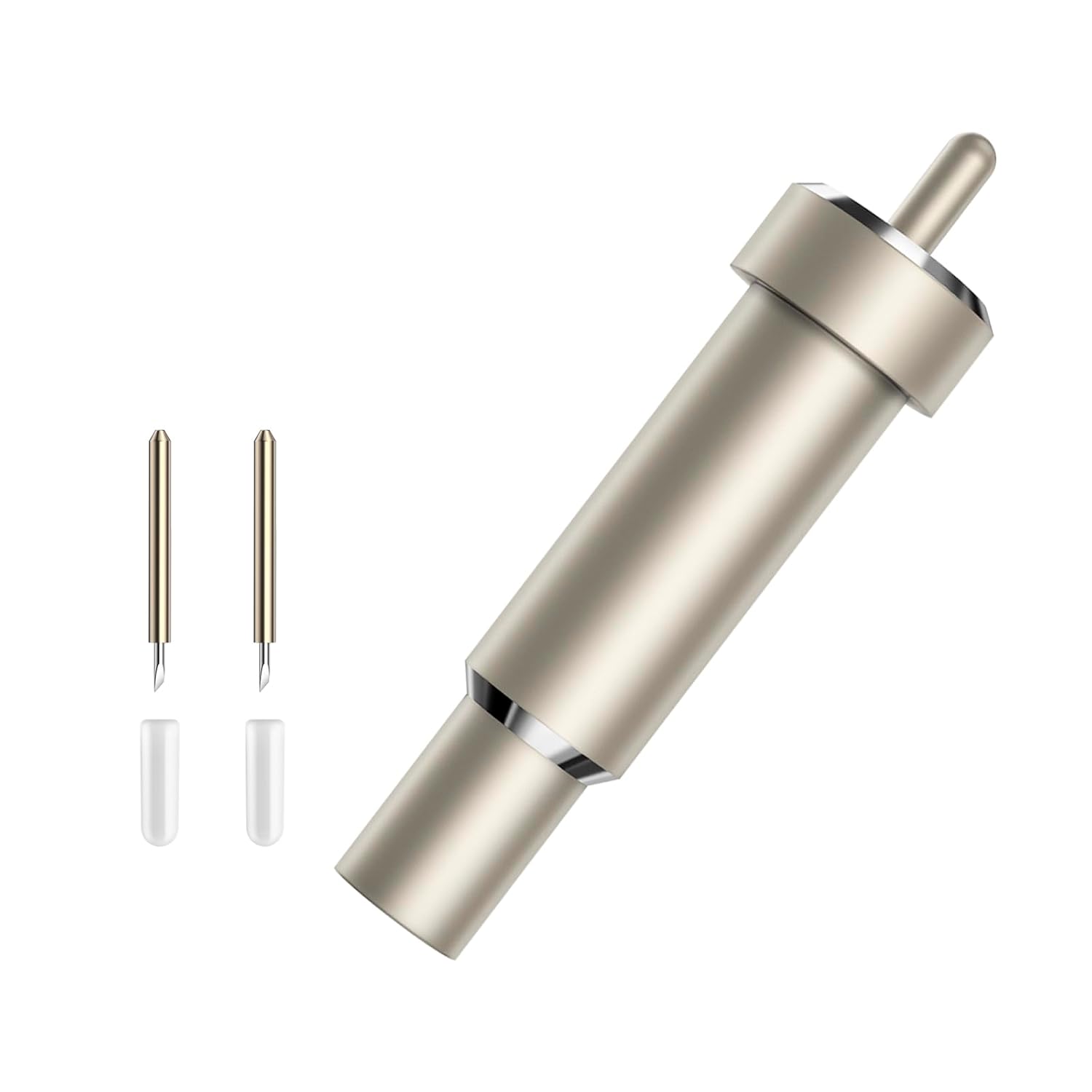
Premium Fine Point Blade for Cricut Maker 3/Maker/Venture/Cricut Explore 3/Air 2/Air/One, 2 pcs Premium Fine Point Blades and 1pc Housing for Cutting Paper/Vinyl/HTV/Cardstock/Vellum/Kraft Board etc
2-pack
Visit on Amazon →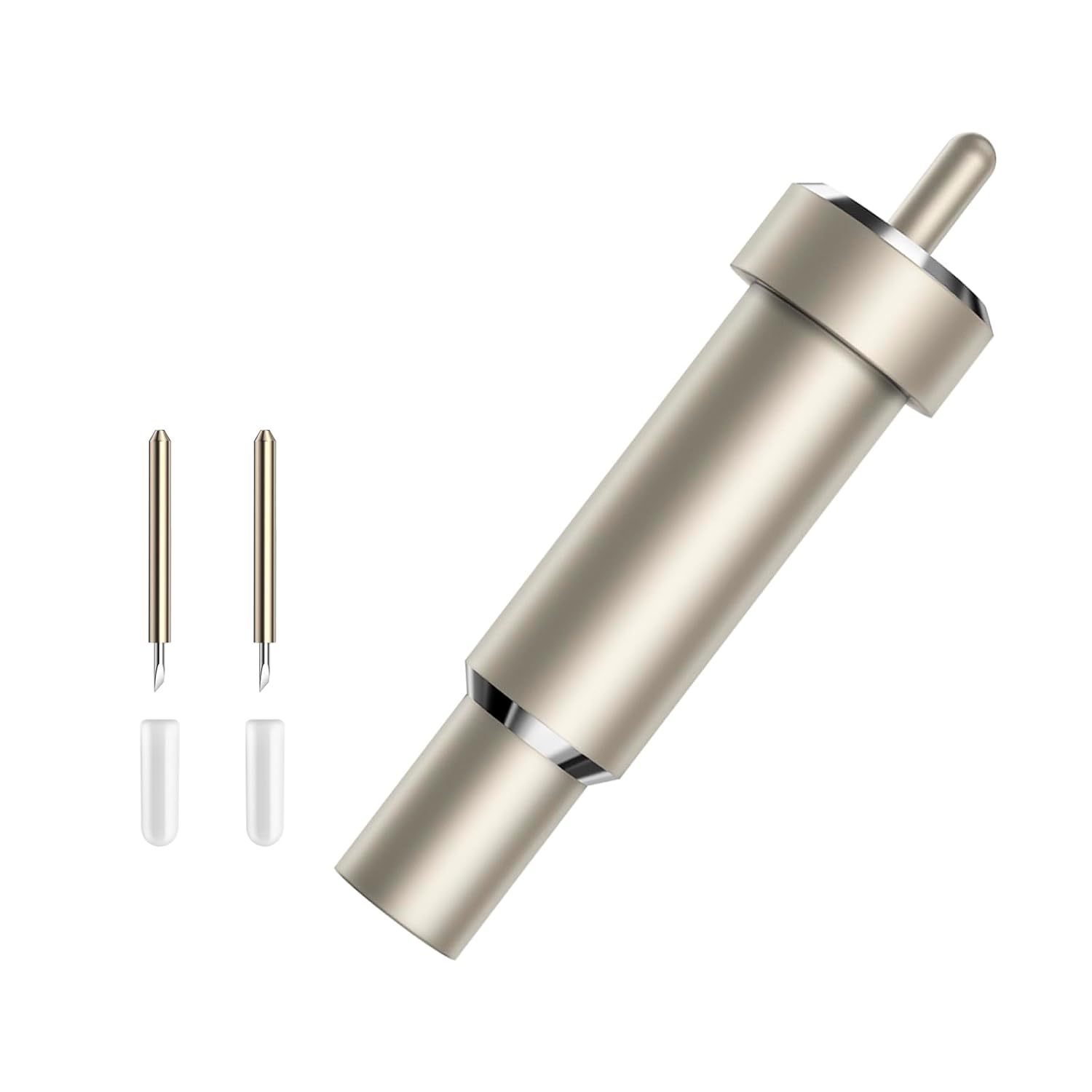
10-Pack Fine Point Blades for Cricut Maker & Explore
The other 10-pack I keep on the shelf.
Visit on Amazon →Why you should trust me
I'm Dee. I run a sticker and vinyl shop out of my basement, teach craft classes on weekends, and I've cut through more than 200 rolls of vinyl in six years. I own an old Explore that's been through hell and still cuts true, a Maker 3 that handles most of my Etsy orders, and a 65-pound lab mix named Roscoe who sleeps on the floor of my shop and has stepped on more mats than I want to admit.
When a box arrives in my shop, I open it, set it up the way a beginner would, and use it until something breaks or frustrates me.
That's how I learned what actually matters during setup and what the manuals skip over.
How I picked and how I tested
Setup isn't about which machine is "best" in the abstract. It's about which tools and consumables you need within the first week so the machine actually does what you bought it for. I went through my own setup notes from the last three unboxings and pulled out the pain points: the blade housing that didn't seat right, the mat that lost grip mid-cut, the power cord that arrived DOA.
I also tracked what students in my craft class struggled with on day one, which is usually the same stuff.
My criteria were simple: the blade has to seat properly in a genuine Cricut housing, the mat has to hold cardstock without tearing it on removal, and any accessory has to work the first time without firmware fights or software wrangling. I didn't grade machines on cut speed or software features. Setup is about getting from box to first clean cut with minimal drama.
The blade and mat picks below came from watching what lasted in my own shop and what students kept buying after class. One student went through a half-pack of bargain blades in two weeks and then asked me which ones I actually use. That's the test.
Our pick: Premium Fine Point Blade Compatible for Cricut Explore Air 2/Air 3/Maker
The first thing you'll do after unboxing is check the included blade. It might be fine. It might not. Either way, you want a backup within the first month, because nothing kills momentum faster than a dull blade halfway through a project.
I run a 10-pack of these carbide steel blades in my drawer and swap them out when cuts start to skip. At ~$5.29 for ten, you're looking at roughly fifty cents per blade, which is the only sane way to budget for a consumable.
A single genuine Cricut blade costs three or four times that per unit. One Australian buyer in my brief said their previous blade "stayed sharp for ages," which is exactly what you want when you're learning your pressure settings and don't know yet how to tell when a blade is going dull.
The blades seat into a genuine Cricut housing, and I'd recommend reusing whatever housing came with your machine. The aftermarket housing market is a gamble; I've seen students buy knockoff housings that don't align the blade correctly, and suddenly their cuts are drifting half a millimeter. Keep the Cricut housing, swap the blade.
Flaws but not dealbreakers
You're trusting a third-party manufacturer to cut carbide steel to a consistent tolerance. Most of the time it's fine. Occasionally a blade arrives with the tip misaligned, and you'll feel it as a cut that drags instead of slices.
The fix is simple: grab the next blade in the pack. Having ten in a drawer means a bad blade costs you about fifty cents and ten seconds of frustration, not an afternoon of troubleshooting.
Runner-up: 10-Pack Fine Point Blades for Cricut Maker & Explore
The other 10-pack I keep on the shelf. Same logic, same machine compatibility, same carbide steel claim. The price lands at ~$5.99, which puts each blade at roughly sixty cents. I rotate between the two packs depending on which is in stock when I reorder, and I haven't noticed a meaningful difference in cut quality between them.
The honest answer is that blade performance in this category is mostly about your housing, your pressure setting, and whether you remembered to clean your mat. The blade itself is a modern. It either works or it doesn't. Both packs deliver working edges at a price that lets you treat blades as the consumables they are instead of rationing each one across twenty projects.
For beginners, this is the pick if the other 10-pack is out of stock or if the listing shows shipping delays. Don't wait for a specific brand when you're trying to finish an order. Grab the next one that ships.
Flaws but not dealbreakers
The same housing caveat applies. These blades are designed to fit Cricut's standard fine-point housing, and they will, but if you buy a third-party housing to go with them, you're doubling down on the gamble. Stick with the housing your machine came with.
Budget pick, if you're starting from zero: Silhouette America Cameo 5 Alpha
This one is for the person who hasn't bought a Cricut yet and is wondering whether they should. The Cameo 5 Alpha at ~$299 is a real competitor. It's a smart cutting machine for print and cut, the software works differently than Cricut's, and the ecosystem of blades and mats is its own thing.
I'm including it because the question of setup doesn't start with the box. It starts with the decision. If you're already locked into Cricut's world because of Design Space, existing cut files, or the classes available in your area, this isn't the pick.
But if you're genuinely undecided and you've heard me complain about Cricut's subscription model, this is the alternative I borrowed and tested for comparison.
The setup itself is comparable. You plug it in, install the software, calibrate the blade, and run a test cut. The software learning curve is steeper than Design Space, which is Cricut's main advantage. But if you're the kind of person who hates subscriptions and wants to own your software outright, the Silhouette path costs less over time.
Flaws but not dealbreakers
Switching ecosystems is a real cost. If you take a class at my shop, you're learning Cricut. If you buy designs on Etsy, most of them are formatted for Cricut's SVG workflow. The Cameo 5 Alpha can handle those files, but you'll be importing and converting more often than you'd like. Factor that in before you commit.
The setup itself: what actually matters
Step one, the power cord. Make sure you have a working power cord before you assume the machine is dead. I had a student last year swear her new Maker was defective. The cord wasn't fully seated in the back of the unit. Push it in until you feel the click.
Step two, the blade housing. Open the clamp, drop in the housing with the blade, and close it. The blade should sit at the correct depth automatically. If it doesn't, the housing is wrong for your machine. Genuine Cricut housings are color-coded for a reason. Don't ignore that.
Step three, the mat. Peel the plastic cover off your StandardGrip mat and stick your test material to it firmly. The mat should hold the material without you having to press hard, and the material should release without tearing when you're done. If it tears, the mat is too sticky or the material is too delicate. If it slides, the mat is too old or the wrong grip level.
Step four, the test cut. Every Cricut comes with a test cut file. Run it. If the cuts don't go all the way through, your pressure is too low or your blade is dull. If the cuts tear through the mat, your pressure is too high. Adjust in small increments and test again.
Step five, ignore the subscription prompts. Design Space will try to upsell you within the first fifteen minutes. You don't need it to cut. The free tier handles basic shapes, fonts, and any SVG file you upload.
The subscription unlocks more images and fonts, but you can buy those individually or find free alternatives.
I tell every student the same thing: don't subscribe until you've hit a wall, and then decide if the wall is worth the monthly fee.
The competition
I didn't include the other machines in the verified list for this article because they're either bundles with extra supplies you don't need on day one, or they're plotter-style cutters with a different setup workflow.
The Cricut Explore 5 Essential Bundle at ~$249.99 comes with a multicolor sampler and a stack of materials, which is fine for a beginner who wants everything in one box, but you're paying for the sampler.
If you already know what vinyl and cardstock you want, the bare machine and a 10-pack of blades is the cheaper setup.
Who this is for
The picks above are for the person unboxing a new Cricut tonight and trying to get a clean cut before bedtime. If that's you, buy the 10-pack of blades, keep the housing your machine came with, run the test cut, and don't subscribe to anything until you've used the machine for a month.
The rest is just patience and a willingness to throw away the first three practice cuts. I've been cutting for six years, and I still throw away practice cuts.